Create Virtual Machine in Vietnix Cloud
After creating a virtual network, the next step is to create virtual machines and connect to them using Remote Desktop or Console.
Pre-Creation Planning
Before creating virtual machines, make sure you have:
- An active Vietnix Cloud account
- A project with sufficient resources (CPU, RAM, and storage)
- A virtual network with available IP addresses
Create Virtual Machine
-
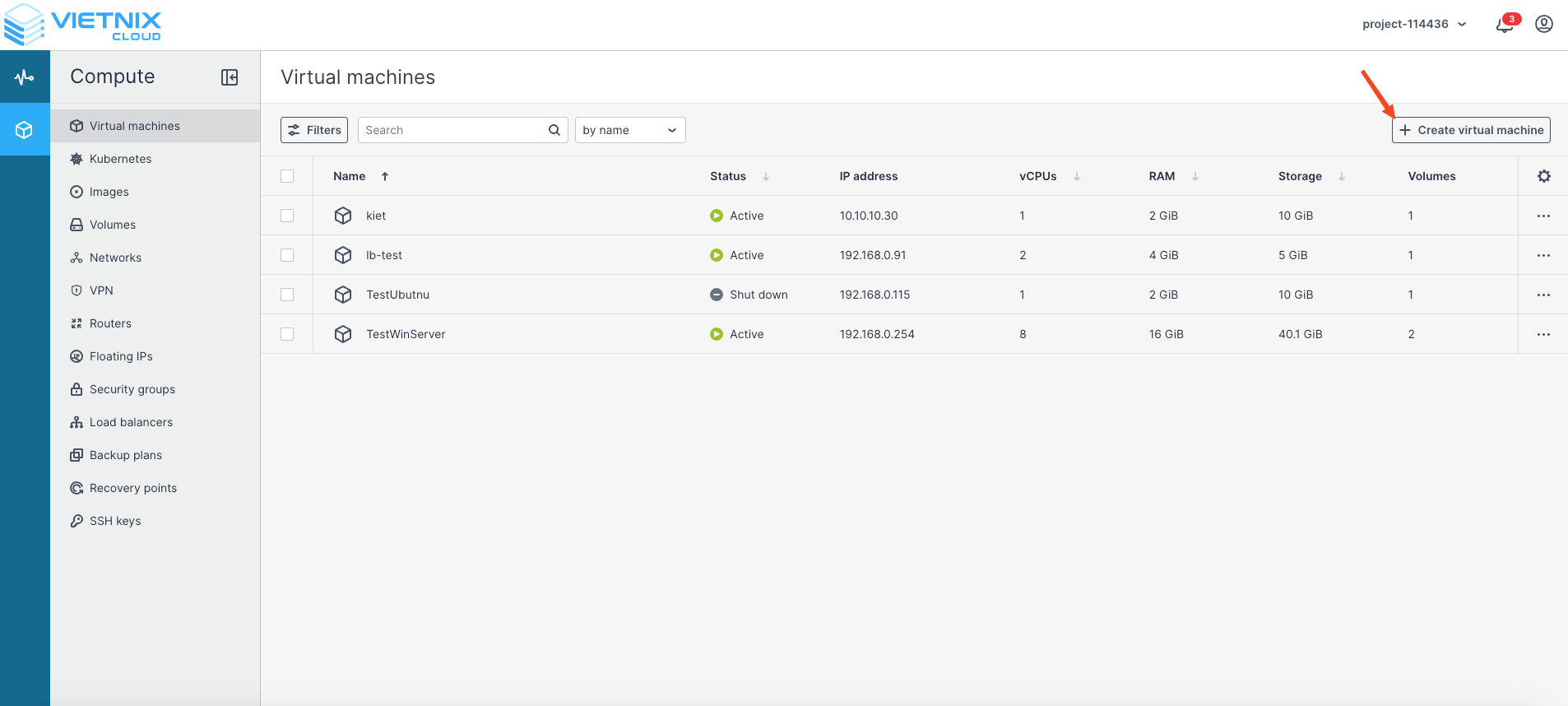
Navigate to Compute → Virtual Machines.
-
Click Create Virtual Machine.
-
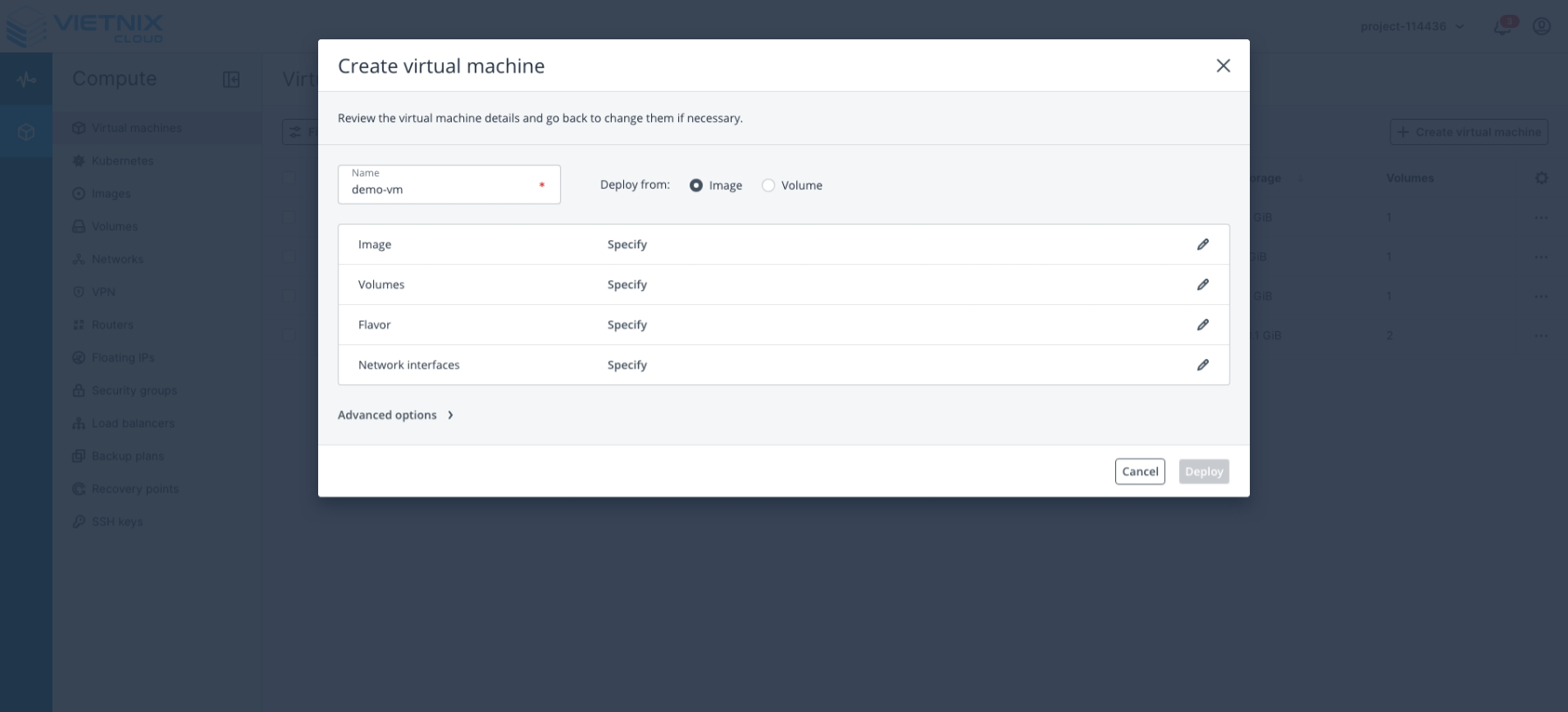
Configure your virtual machine:
-
Name: Enter a name for the virtual machine.
-
Deploy From: Select the deployment method (Image or Volume).
-
Image: Choose the image for the virtual machine (e.g.,
Windows-10-Professional-x64).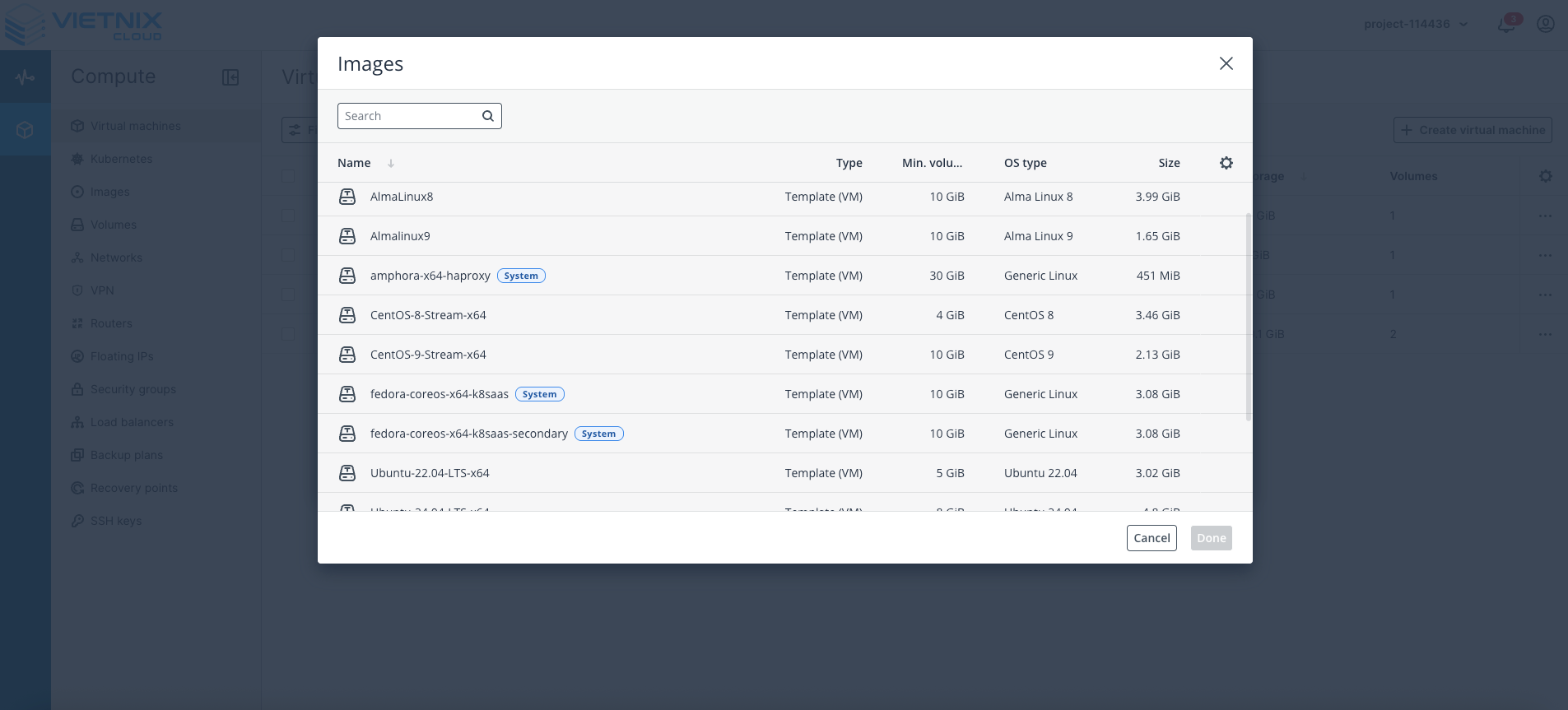
-
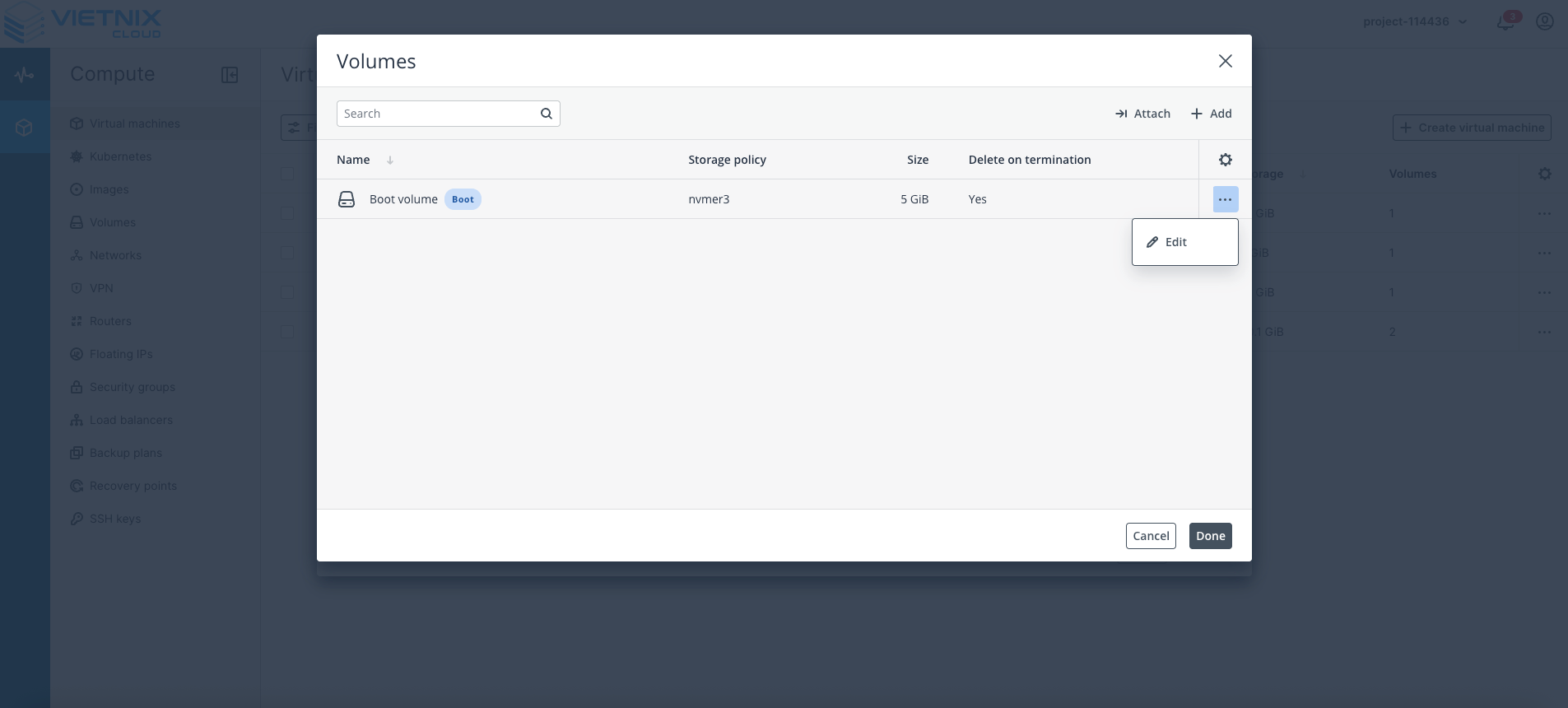
Volume (Optional): If deploying from an image, a boot volume will be created. You can edit the size (e.g., increase to 10 GB).
-
Flavor: Select the resource configuration for the VM.
Minimum requirement: 8 GB RAM,largeorxlarge.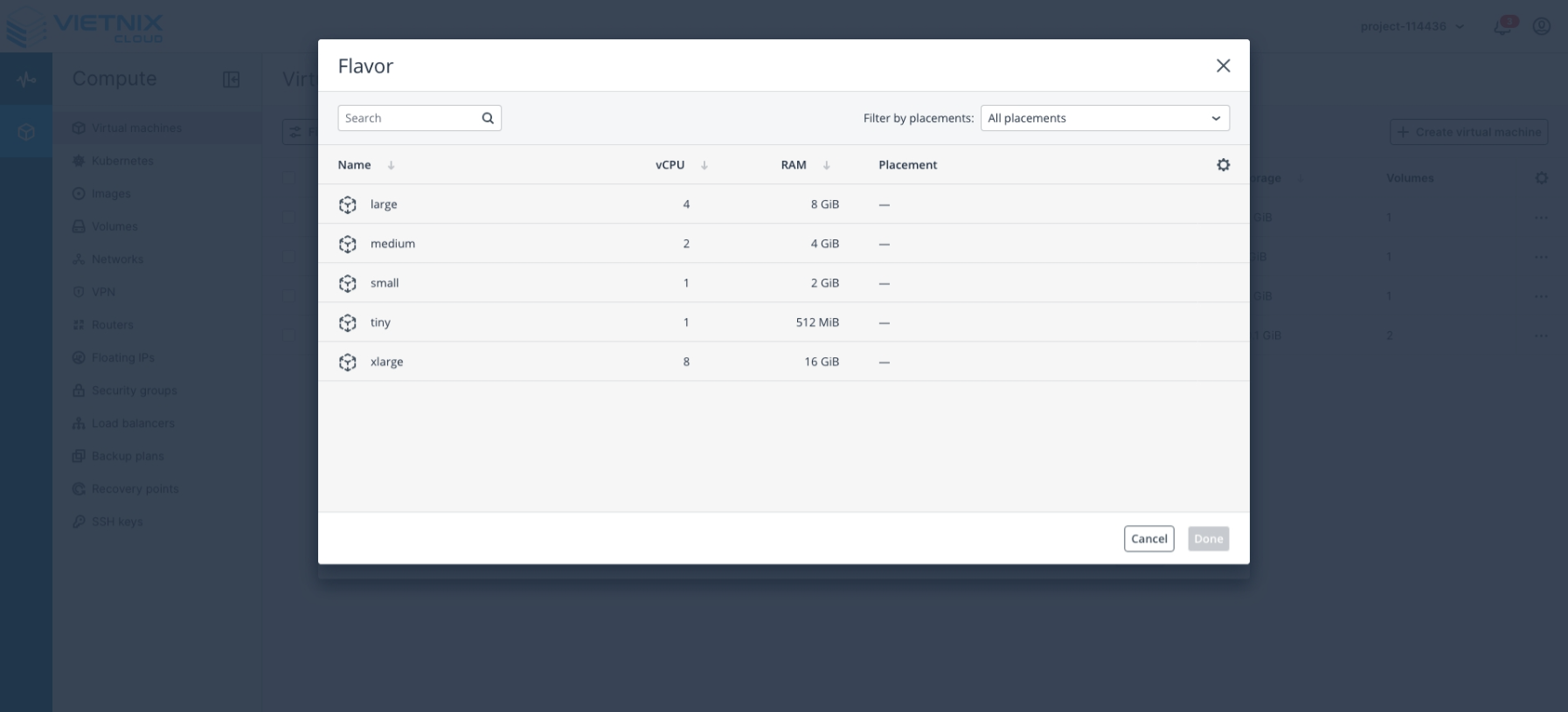
-
Network: Choose the virtual network created earlier.
Click Add, select the network, and leave other values as default. Click Add → Done.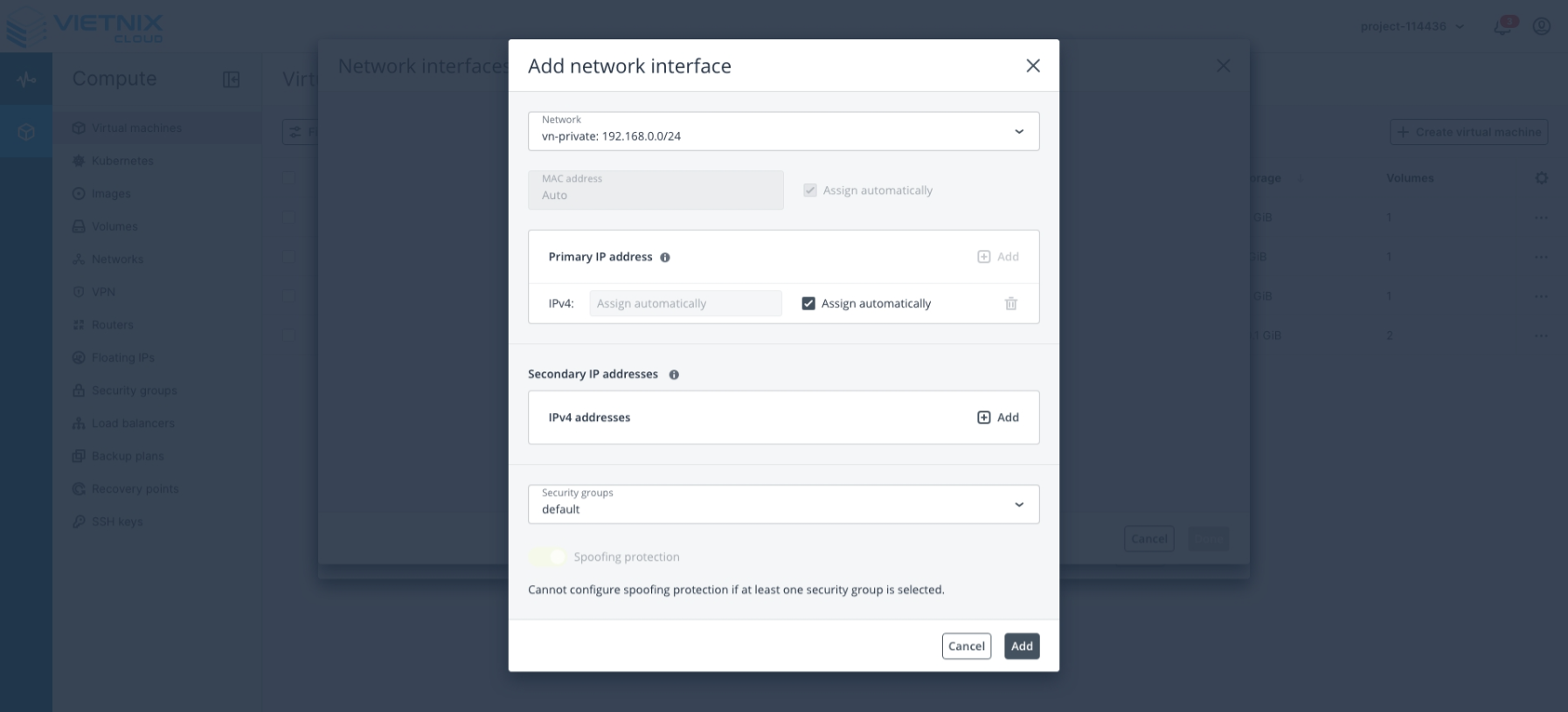
-
-
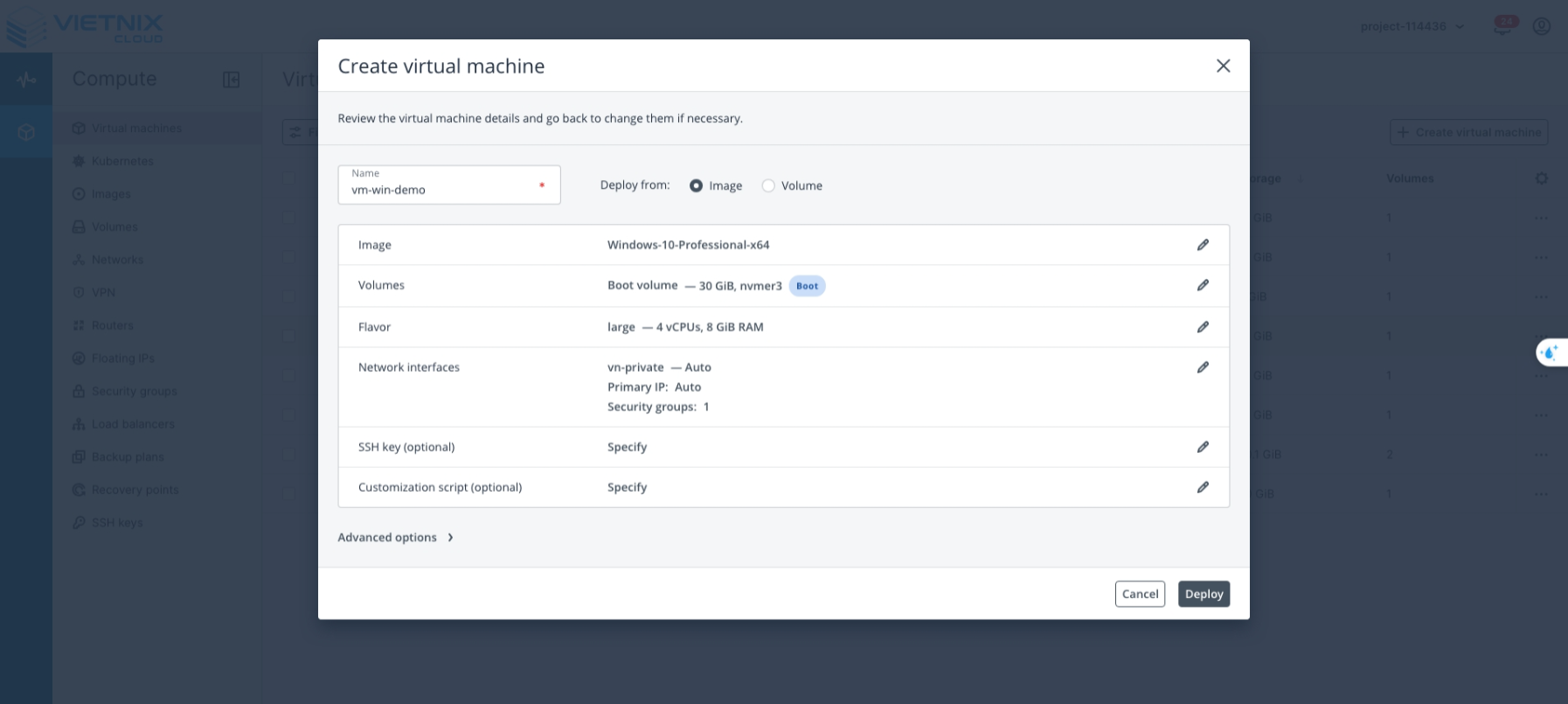
Summary: Review the configuration, ensure all settings are correct before deployment.
 Info
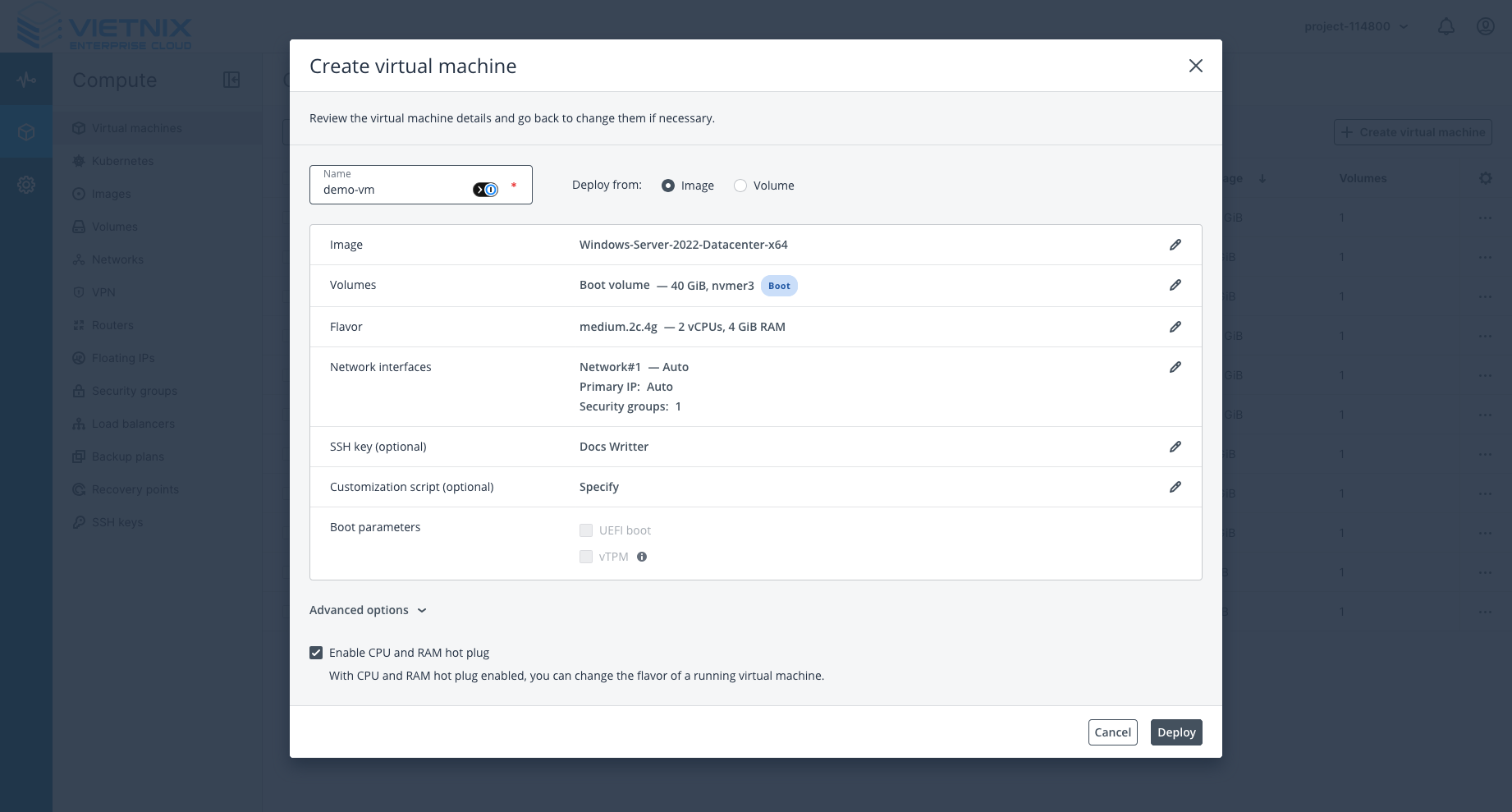
InfoAdditional information: You can open Advanced Options to see the CPU and RAM Hot Plug setting. When enabled, the VM can receive CPU and RAM changes while it is running, allowing you to resize resources without shutting down.
-
Click Deploy to start creating the virtual machine.
-
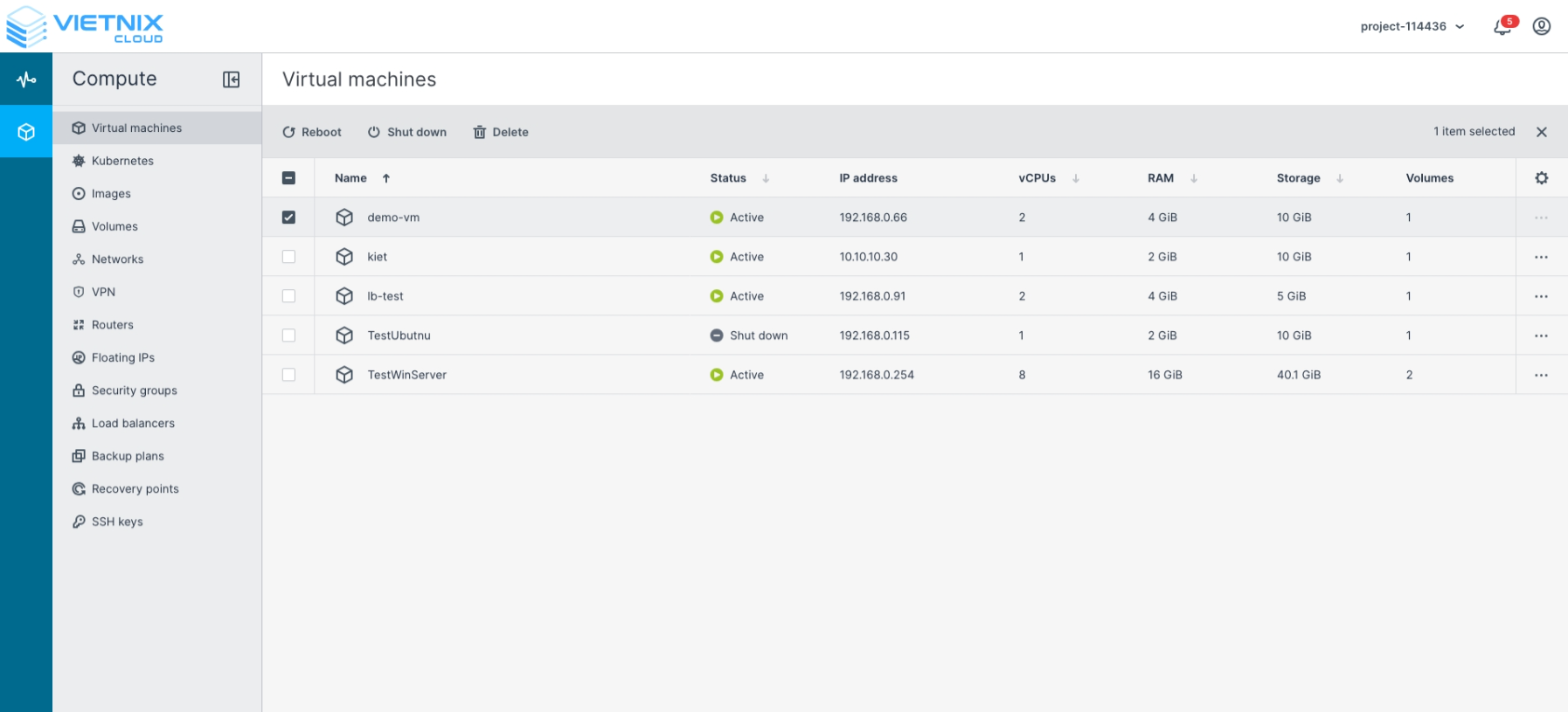
Monitor the progress of the VM creation.
-
Once the VM status changes to Active, your virtual machine is successfully created and ready to use.
Connect to Virtual Machine
-
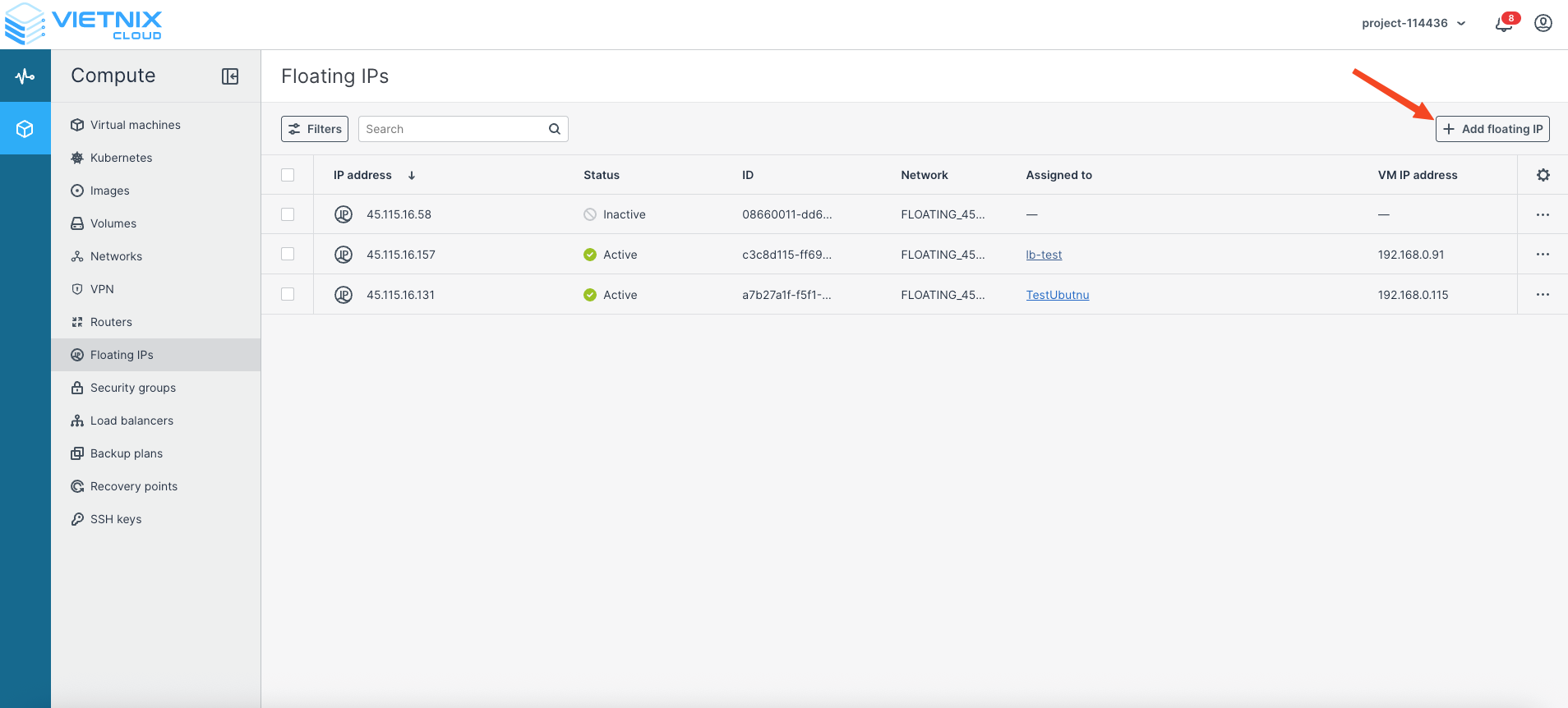
Navigate to Compute → Floating IPs.
-
Click Add Floating IP.
-
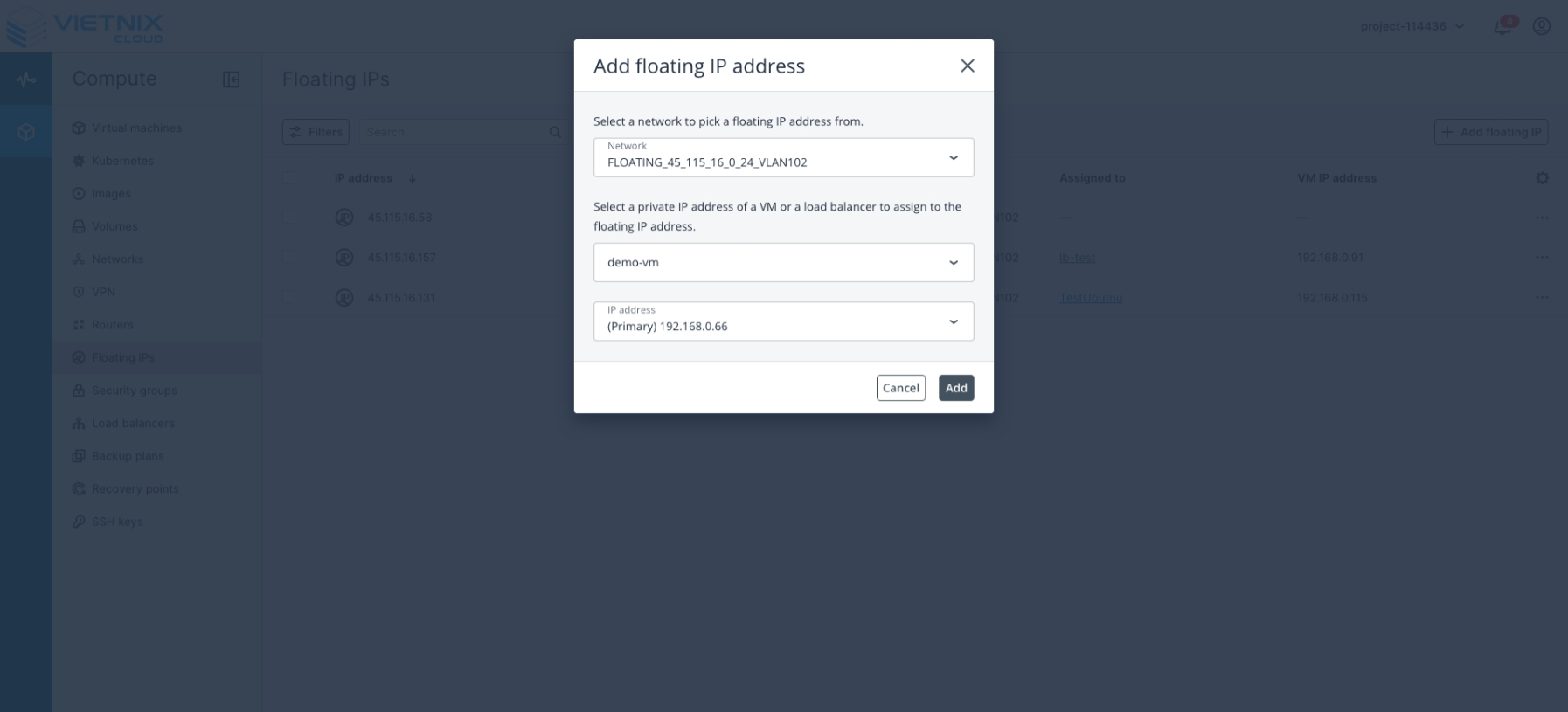
Configure the Floating IP settings:
- Network: Select the external network that will provide public access.
- VM or Load Balancer: Choose the virtual machine you created and want to connect to.
- IP Address: Select or assign an available IPv4 address for the VM.
-
Once created, the status will change to Active, confirming the Floating IP has been successfully assigned.
You can now use this IP address to connect to your VM.Copy the assigned Floating IP address from the Floating IPs list.
This will be the IP address used to connect to the VM from the internet.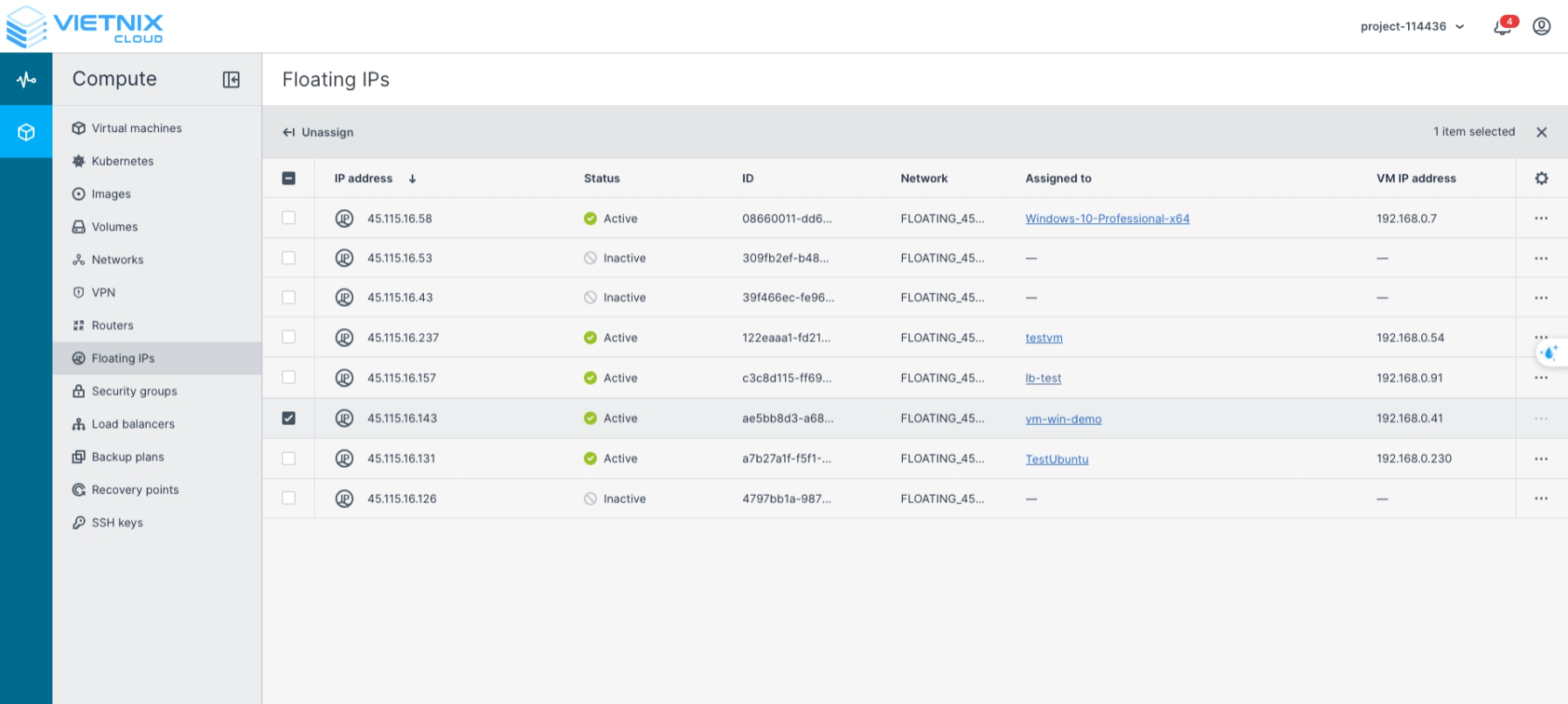
-
Set Administrator Password
In the Virtual Machines section, select the VM you want to access and click Set Password.
This password will be used for the Administrator user when logging in via Remote Desktop or Console.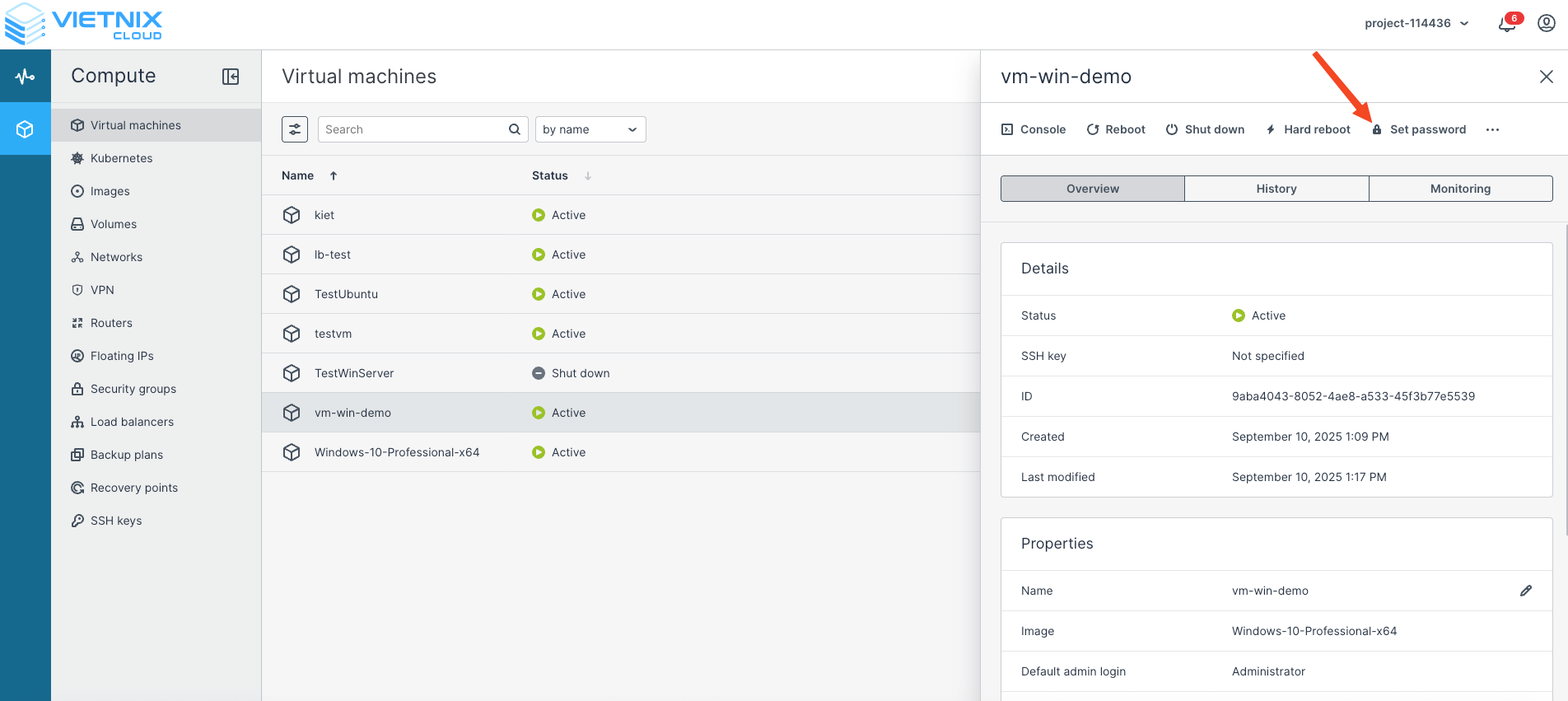
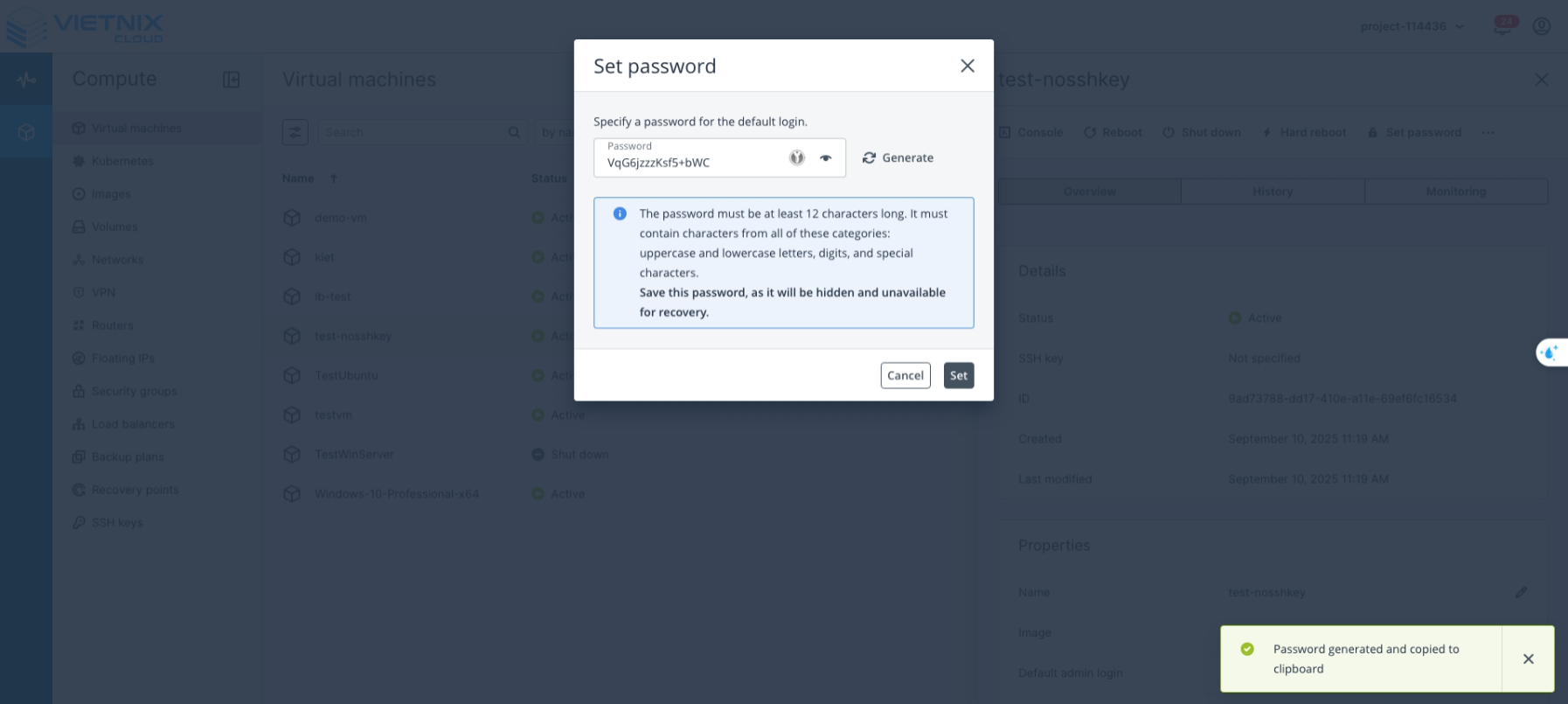
You can either set a custom password (following the password policy) or click Generate to automatically create one.
- Click the eye icon next to the password field to view it.
- Save the password in a secure location.
- Click Set to apply the password.
-
Connect to the Windows VM
You can connect to the Windows virtual machine using:
- Remote Desktop (RDP): Use the assigned Floating IP and port 3389.
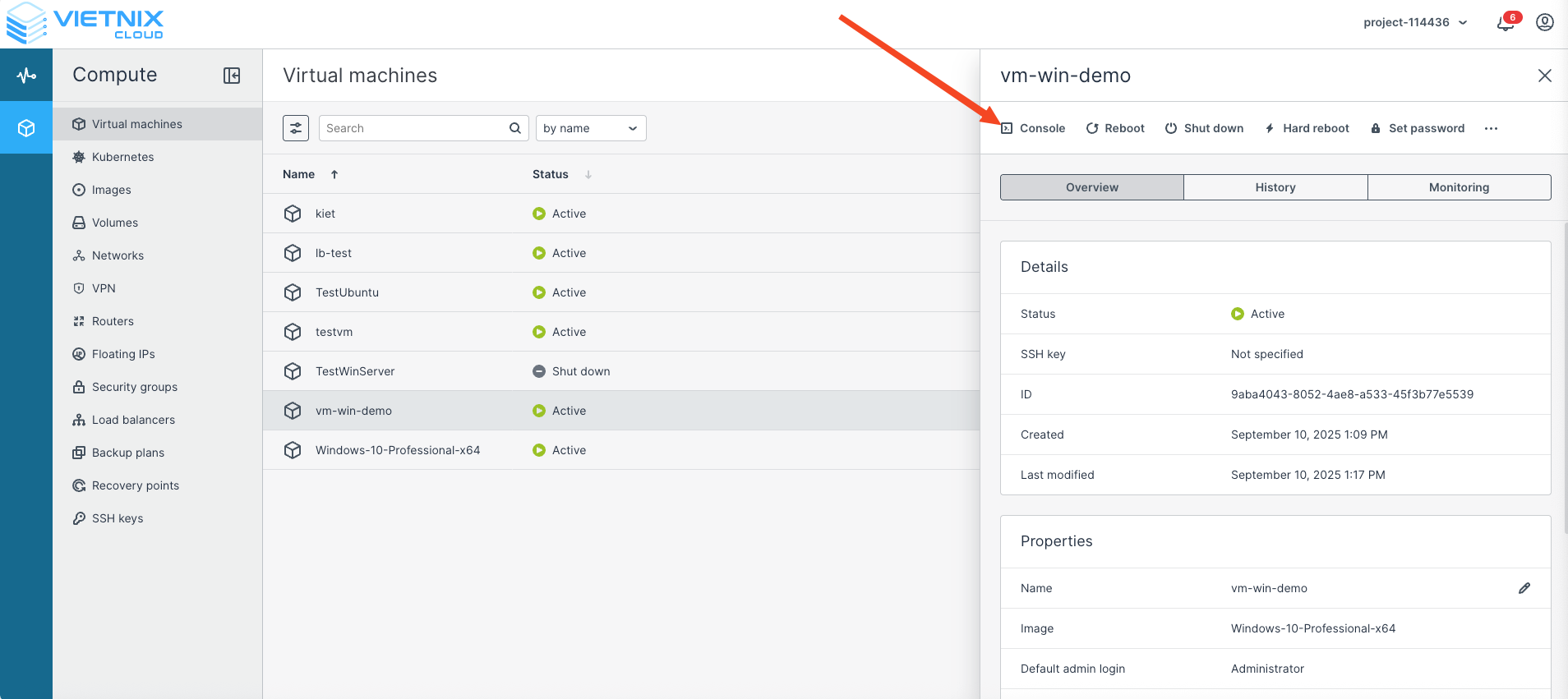
- Console: Connect directly via the Vietnix Cloud Dashboard.
Login credentials:
- Username:
Administrator - Password: The one you set in the previous step.
-
Successful Login
After logging in, you should see the Windows desktop environment.
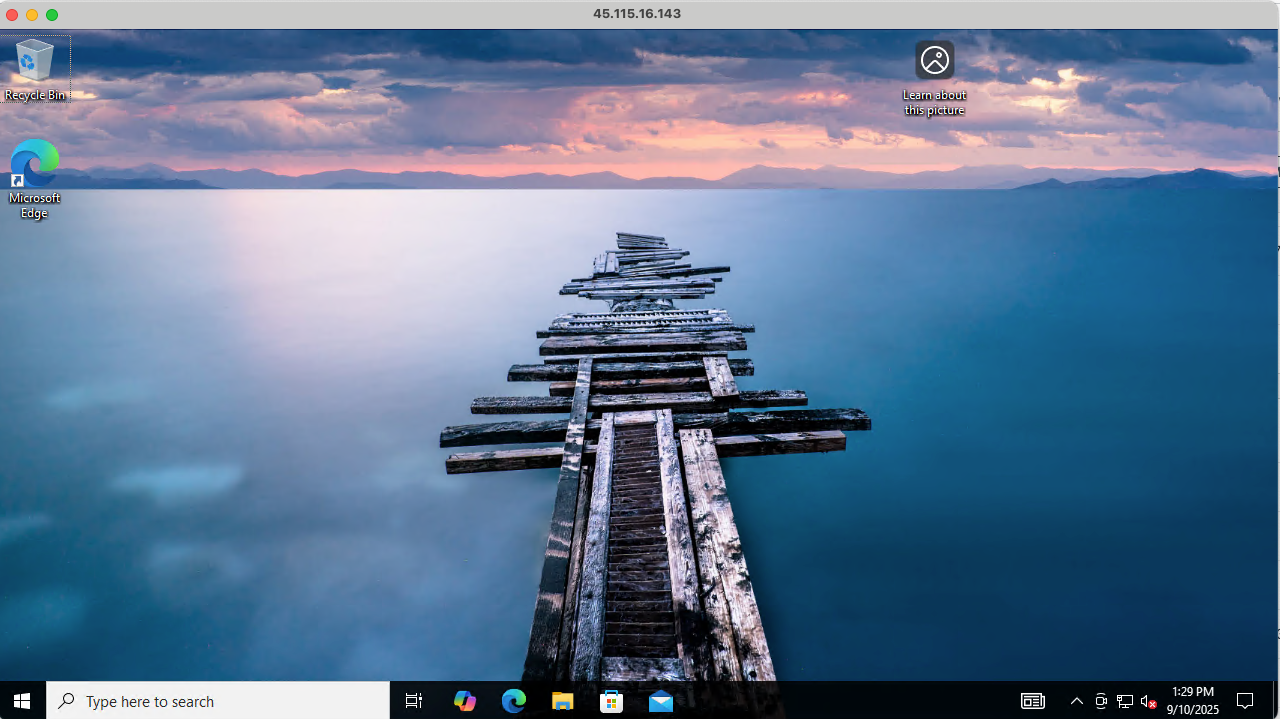
You have now successfully created and connected to a Windows virtual machine.
The next guide will walk you through creating a Kubernetes cluster on Vietnix Cloud. Good luck!