Load Balancer Health Monitor Parameters
A Health Monitor allows the Load Balancer to check the status of backend members and ensure traffic is only sent to healthy servers. This guide explains the parameters used to configure health monitoring.
Health Monitor Parameters
When creating or editing a health monitor, you will configure the following parameters:
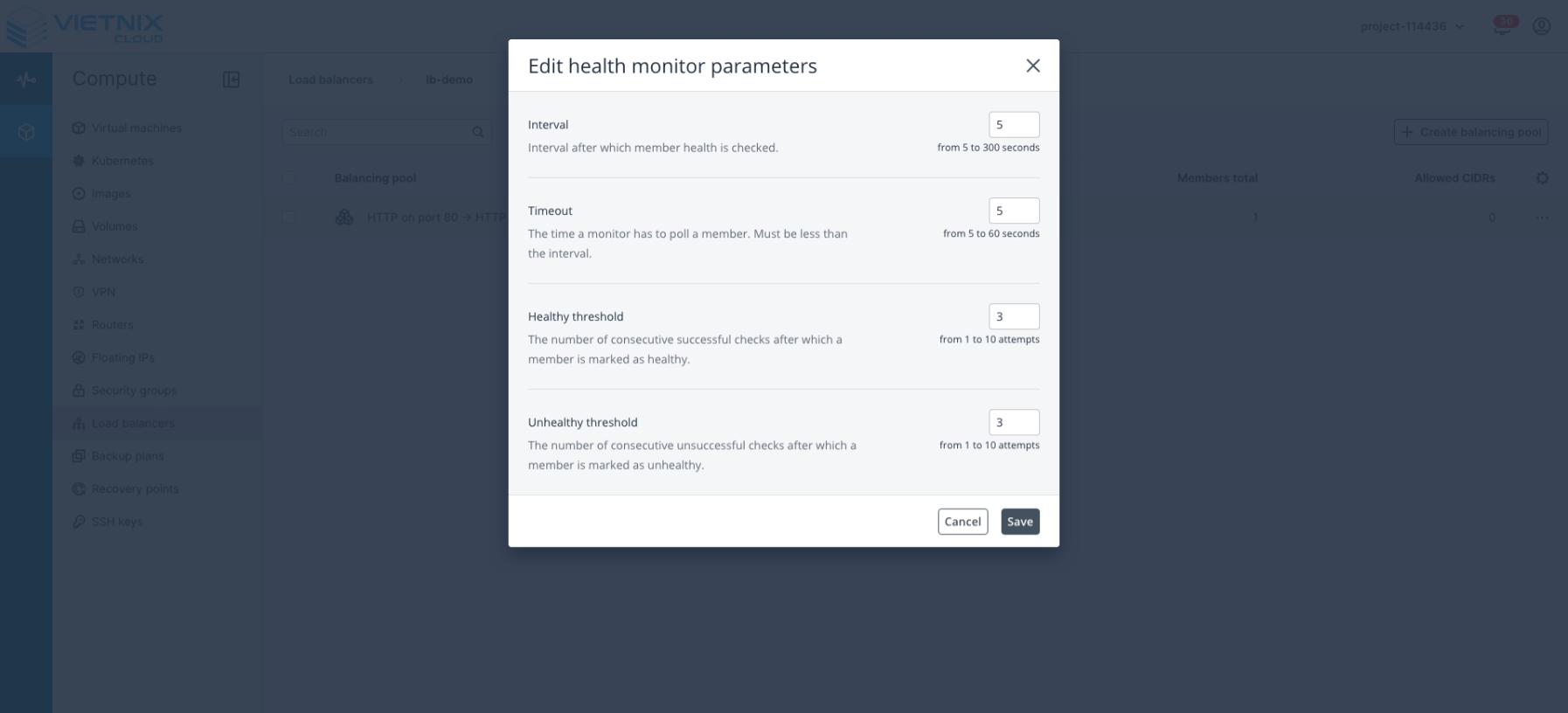
Interval
- Description: The time interval (in seconds) after which the health of each member is checked.
- Range: 5 to 300 seconds
- Example: Setting an interval of 10 seconds means each member will be checked every 10 seconds.
Timeout
- Description: The maximum amount of time (in seconds) a monitor waits for a response from a member. Must be less than the interval.
- Range: 5 to 60 seconds
- Example: A timeout of 5 seconds means if a member does not respond within 5 seconds, it is considered a failed check.
Healthy Threshold
- Description: The number of consecutive successful health checks required for a member to be considered healthy.
- Range: 1 to 10 attempts
- Example: If set to 3, a member must pass 3 consecutive checks before it is marked healthy.
Unhealthy Threshold
- Description: The number of consecutive failed health checks required for a member to be considered unhealthy.
- Range: 1 to 10 attempts
- Example: If set to 3, a member must fail 3 consecutive checks before it is marked unhealthy.
Editing Health Monitor Parameters
To edit an existing health monitor:
-
Login to Vietnix Cloud Dashboard
-
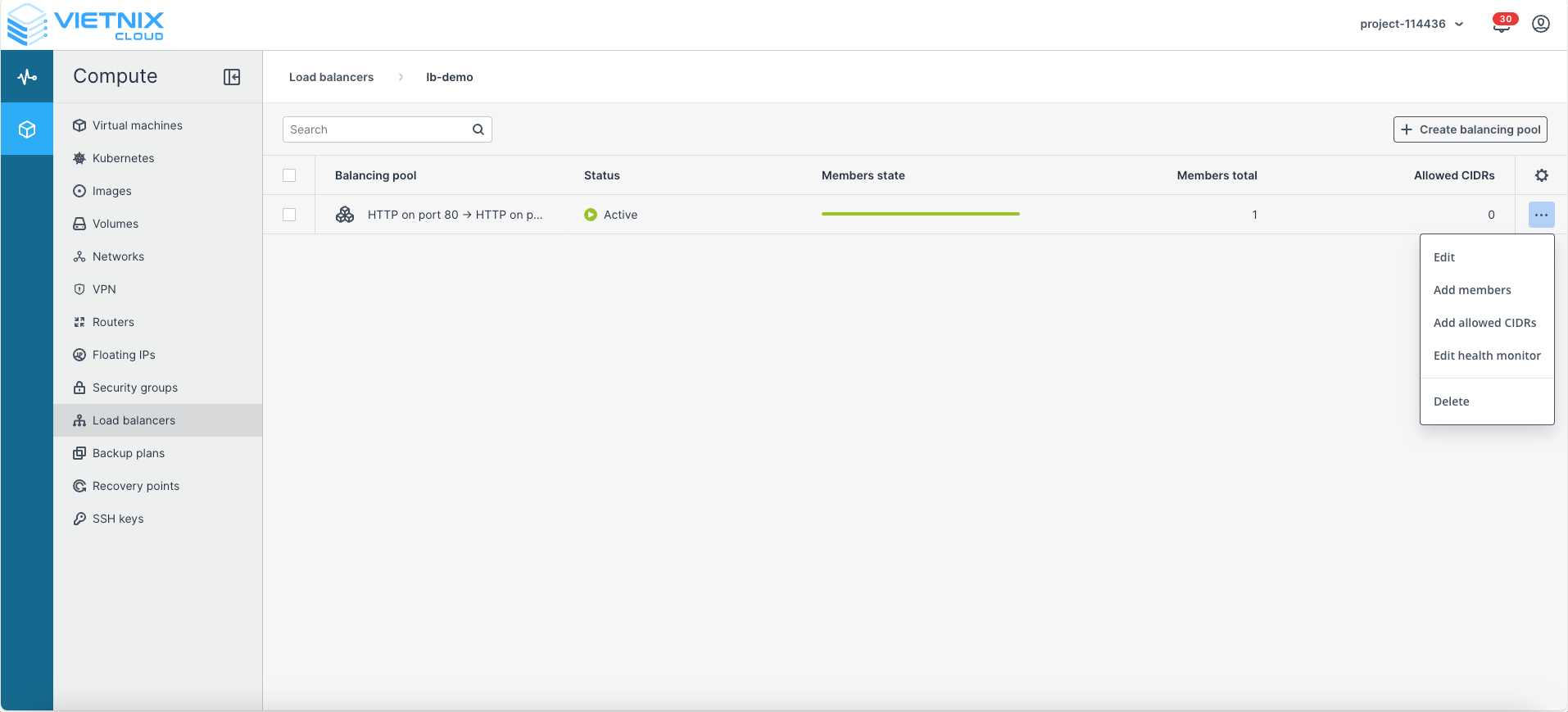
Navigate to Compute > Load Balancers
-
Select the Load Balancer you want to manage
-
Click Edit Health Monitor
-
Modify the parameters as needed: Interval, Timeout, Healthy Threshold, Unhealthy Threshold
-
Click Save to apply changes
Best Practices
- Interval vs Timeout: Ensure the timeout is always less than the interval.
- Thresholds: Higher thresholds make the system less sensitive to temporary issues, lower thresholds detect failures faster.
- Monitoring frequency: For critical services, use shorter intervals to detect failures quickly.